
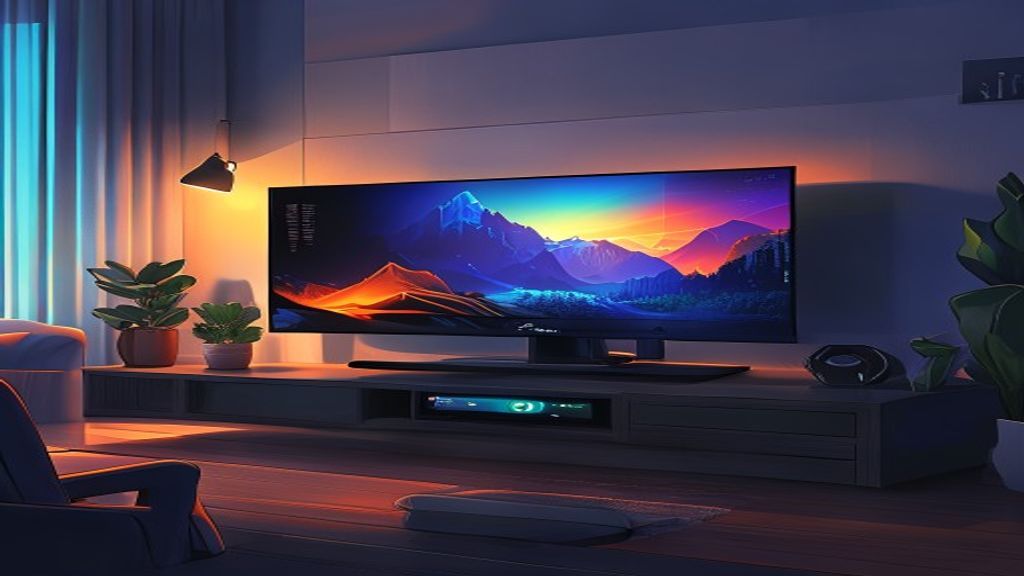
Introduction to Kodibuntu
Kodibuntu is a Linux distribution based on Ubuntu that is specifically designed to run Kodi, the popular open-source media center. Its main goal is to provide a lightweight, ready-to-use environment that turns any computer into a powerful and quiet HTPC (Home Theater PC). In this article we will explore what Kodibuntu is, its most notable features, how to install it, and why it may be the best option for your living room.
What is Kodibuntu
Kodibuntu arises from the need to provide an optimized platform for Kodi without the overhead of a full Ubuntu installation with a traditional desktop. It is based on Ubuntu’s LTS version, which guarantees security updates and long-term support. The desktop environment is minimized, usually using a lightweight window manager such as Openbox or LXDE, and it boots directly into Kodi’s full-screen mode, offering a console-like experience.
Main Features
- Ubuntu LTS base ensures stability and up-to-date packages.
- Minimal desktop environment to reduce resource consumption.
- Automatic startup of Kodi in full-screen mode.
- Included proprietary graphics drivers for better performance.
- Simplified network and audio configuration tools.
- Compatibility with a wide range of hardware, from old PCs to modern boards.
Advantages over other distributions
Compared to a generic Ubuntu installation plus Kodi, Kodibuntu eliminates manual configuration steps and reduces RAM and CPU consumption by dispensing with unnecessary services. Other options like LibreELEC are geared toward embedded devices and may lack the flexibility of a full Debian/Ubuntu-based system, whereas Kodibuntu provides full access to the terminal and Ubuntu repositories, making it easy to install additional applications such as Plex servers, torrent clients, or administration tools.
Hardware Requirements
Kodibuntu is relatively lightweight, but to enjoy uninterrupted 4K playback, a processor with at least four cores, a GPU compatible with OpenGL 4.0 or Vulkan, and at least 4 GB of RAM are recommended. For HD 1080p content, a dual-core CPU and 2 GB of RAM may be sufficient. Storage can be an SSD of 16 GB or more for the system and an additional drive for the media library.
Step-by-step to install Kodibuntu
- Download the official ISO image from the Kodibuntu download page.
- Write the ISO to a USB flash drive using a tool such as Rufus or BalenaEtcher.
- Connect the USB to the machine where you want to install and boot from it (this may require changing the boot order in BIOS/UEFI).
- Select the ‘Install Kodibuntu’ option and follow the wizard, choosing language, time zone, and keyboard layout.
- Partition the disk; you can use the entire disk or create separate partitions for root and home.
- Confirm the installation and wait for the process to copy files and configure the boot loader.
- When finished, remove the USB and reboot the system.
- The machine will boot directly into Kodi in full-screen mode; from there you can adjust network, audio, and addon settings.
Initial Kodi Configuration
After the first boot, Kodi will show the configuration wizard where you can select the language, enable data usage mode, and configure location services. Next, it is advisable to add your media sources: go to Videos > Files > Add source and point to the folders where you have movies, series, or music. Install the official add-ons from the Kodi repository to access services such as YouTube, Netflix (if you have an account), or subtitle add-ons. Finally, adjust the video and audio output settings according to the capabilities of your TV or AV receiver.
Optimization and Performance
To get the most out of Kodibuntu, consider enabling the proprietary graphics driver for your card (NVIDIA or AMD) from the additional drivers utility. Enable VA-API or VDPAU acceleration in Kodi’s playback settings to hardware-decode H.264, H.265, and VP9. Disable unnecessary desktop effects if you are using a lightweight graphical environment. Keep the system updated with sudo apt update && sudo apt upgrade to receive performance improvements and security patches. You can also adjust the CPU priority of the Kodi process using nice or use a low-latency kernel if you seek maximum smoothness in light games or emulators.
Common Troubleshooting
- If Kodi does not start in full-screen, verify that the autostart file contains the correct command and that there are
This post is also available in ESPAÑOL.