
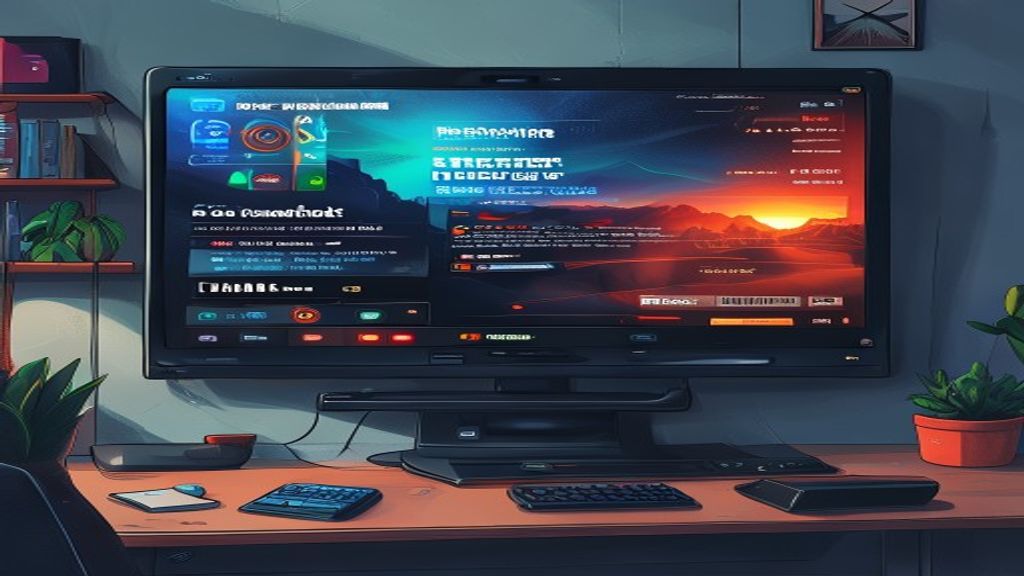
What is OSMC?
OSMC (Open Source Media Center) is a Debian-based Linux distribution designed specifically to turn any compatible device into a full-featured media center. Its core is the popular Kodi player, but OSMC wraps it in an optimized layer that improves performance, stability, and ease of use on limited hardware such as Raspberry Pi, Odroid, or x86 PCs.
History and development
The project was launched in 2014 as a lightweight alternative to other Kodi distributions, aiming to provide regular updates and long-term maintenance. Since then, OSMC has grown thanks to an active community that contributes packages, translations, and improvements to the desktop environment. Each release follows Debian’s release cycle, ensuring security and compatibility with the latest kernels.
Main features
- Kodi-based user interface, fully customizable via skins and addons.
- Native support for hardware 4K HDR video decoding on compatible platforms.
- Integrated update manager that keeps the system and packages up to date without manual intervention.
- Access to official OSMC repositories and the vast library of Kodi addons for streaming, IPTV, games, and more.
- Simple configuration tools for networks, external storage, and services such as Samba or NFS.
- Compatibility with a wide range of devices: Raspberry Pi 0/1/2/3/4/Zero, Odroid C2/N2, Vero 4K/4K+, and x86_64 PCs.
Hardware requirements
For a smooth experience, it is recommended to have at least a Raspberry Pi 3 Model B+ or higher, with a class 10 microSD card of 8 GB or more. On more powerful devices such as the Vero 4K+ or an x86_64 PC, OSMC leverages GPU decoding to play 4K content at 60 fps without taxing the CPU. The minimum RAM is 512 MB, although 1 GB or more significantly improves multitasking with active addons.
Step-by-step installation
- Download the appropriate image for your device from the official page osmc.tv/download.
- Use a tool such as Balena Etcher or Raspberry Pi Imager to write the image to the microSD or chosen storage medium.
- Insert the card into the device, connect the power cable, and optionally a keyboard and a TV or monitor via HDMI.
- On first boot, OSMC runs a setup wizard that asks you to select language, time zone, and configure the network (Wi‑Fi or Ethernet).
- Once the wizard finishes, the system boots directly into the Kodi interface, ready to install addons and add your media sources.
- Optional: access
My OSMCfrom the settings menu to enable automatic updates and manage extras such as the SSH client or VNC server.
Daily use and customization
With OSMC installed, you can play movies, TV shows, music, and photos from local drives, NAS units, or streaming services via official addons such as YouTube, Netflix (through external addons), or Plex. The interface remains responsive even on modest Raspberry Pi models thanks to GPU video acceleration. Advanced users can modify the config.txt file for mild overclocking, enable SPDIF audio output, or adjust output resolution to match their TV.
Advantages and disadvantages
- Advantages: low power consumption, secure and regular updates, broad hardware compatibility, active community and comprehensive documentation.
- Disadvantages: some premium streaming features require external addons that may lie outside the official repositories, and performance on very old devices may be limited to HD content.
Conclusion
OSMC represents one of the most solid and balanced options for anyone seeking a free, reliable, and easy-to-maintain media center. Its Debian base ensures longevity, while its integration with Kodi provides access to a virtually limitless ecosystem of content and customization. Whether you are building a home project with a Raspberry Pi or outfitting a lounge with a dedicated device, OSMC is worth considering.
This post is also available in ESPAÑOL.